
RenameKing
1. Introduction
RenameKing is a Mac app for renaming many files and folders at once. You can check every new name in a list before anything is changed, so you can work with confidence.
What you can do
- Rename: add numbers or dates, remove or replace text, change letter case and more — just by choosing from a menu. Wildcards and regular expressions are available for precise control.
- Tag Rename: use information stored inside files — the date a photo was taken, song titles and artists, document titles — in file names.
- Attributes: change the modification and creation dates of many files at once, and lock or hide files.
- Numbered Objects: create numbered folders or files such as “Chapter 01” to “Chapter 12” in one go.
- Move or copy while renaming: move or copy files to another folder with new names, or sort them into folders by date, album and so on.
- Undo: changes you make can be undone.
System requirements
macOS 15 or later, on Macs with Apple silicon or Intel processors. The interface is available in Japanese, English, Chinese (Simplified and Traditional), Korean, German, French, Spanish, Italian and Portuguese (Brazil).
2. The Main Window
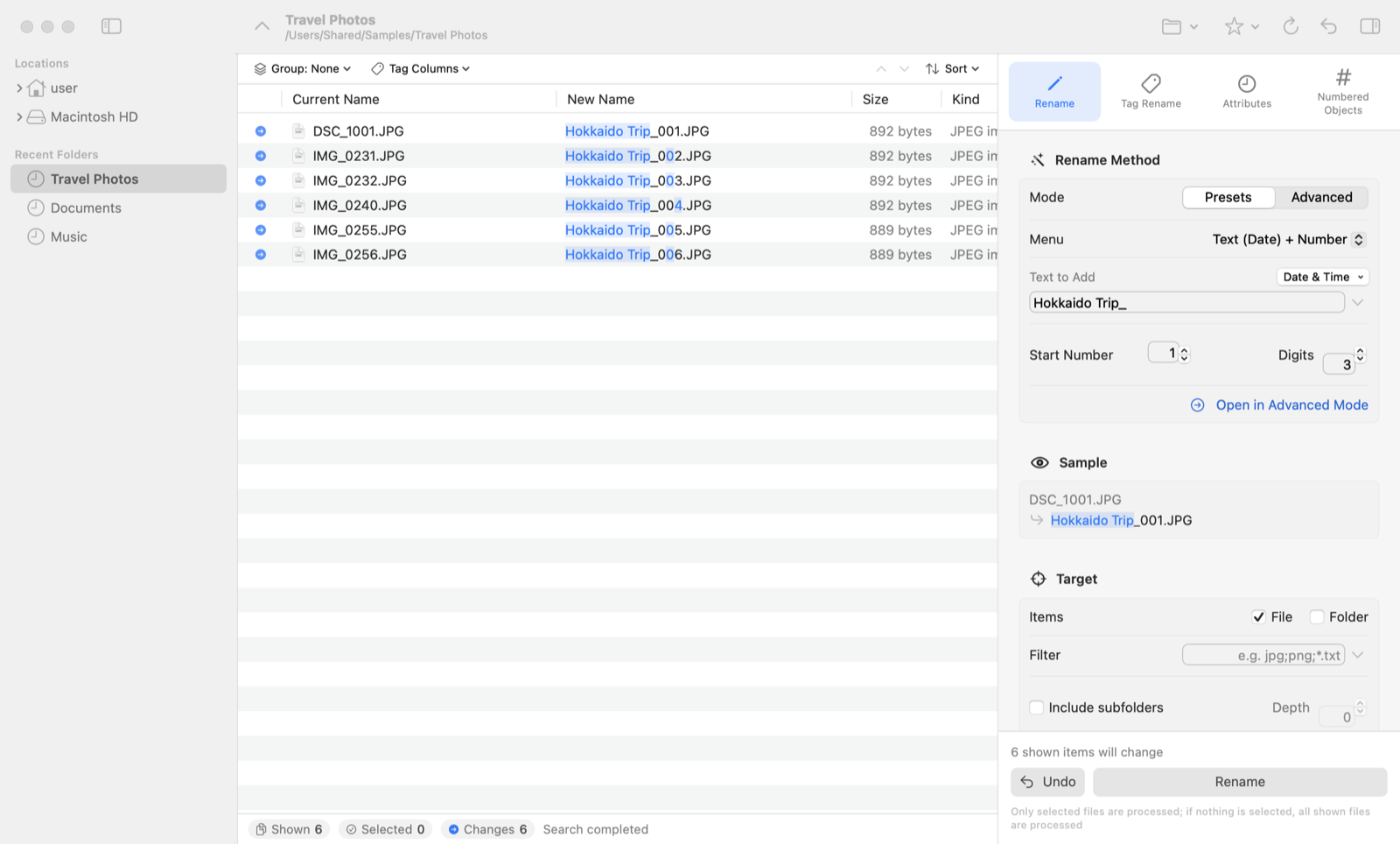
| Area | Description |
|---|---|
| Sidebar (left) | The folder tree and “Recent Folders”. Click a folder to show its contents in the list. |
| Toolbar (top) | Choose a folder, favorites, refresh, undo, and show or hide the settings panel. |
| File list (center) | Shows “Current Name” and “New Name” side by side. The parts that change are highlighted in blue. The icon at the start of each row shows its status (● will change, ▲ warning). |
| Status bar (bottom) | The number of items shown, selected, to be changed and with warnings. |
| Settings panel (right) | Switch between functions (Rename / Tag Rename / Attributes / Numbered Objects) with the tabs at the top, and set options below. |
| Action buttons (bottom right) | The button that runs the current function (“Rename”, “Apply”, “Create”) and the “Undo” button. |
3. Getting Started
- Open a folder: click a folder in the sidebar. You can also drag files or folders onto the window or onto the app’s Dock icon, or choose File → Choose Folder… (⌘O).
- Choose a function: select “Rename” or another function with the tabs at the top of the settings panel.
- Set it up: for example, choose “Text (Date) + Number” from the presets menu and type
Hokkaido Trip_in “Text to Add”. - Check the result: the “New Name” column updates instantly. The “Sample” section in the settings panel shows the result for the first item.
- Run: click the “Rename” button at the bottom right (⌘↩).
4. Rename: Presets
Common renaming tasks are collected in a menu. Set “Mode” to Presets and pick an item from “Menu”. Depending on the item, fields such as Text to Add, Start Number, Digits or position appear.
| Category | Main items |
|---|---|
| Add Numbers or Text | Number + Extension / Number + Original Title + Extension / Original Title + Number + Extension / Text (Date) + Number / Number + Text (Date) / insert text at the Nth character from the start (end) / add a number at the start (end) / Date / add the date at the start (end) / Add Folder Name at Start / Folder Name + Number |
| Remove Numbers or Text | Remove N characters from the Nth character / remove everything after (before) the Nth character / remove “copy” and “alias” suffixes / Remove Brackets and Contents / remove (n) or [n] |
| Convert Character Types | Capitalize Words / Swap Case / upper ⇒ lower, lower ⇒ upper / half-width ⇔ full-width / katakana ⇔ hiragana / Remove Diacritics (é → e, etc.) |
| Replace Text | Replace Text, Swap Both Sides of '-' |
| Organize Numbers | Pad the Nth number from the start (end) (e.g. 1 → 001) / increase or decrease the Nth number |
| Change Extension | Uppercase / Lowercase / Remove / Add / Replace Extension |
5. Rename: Advanced
Set “Mode” to Advanced to build names freely with two fields: “Find” and “Replace”. There are three methods.
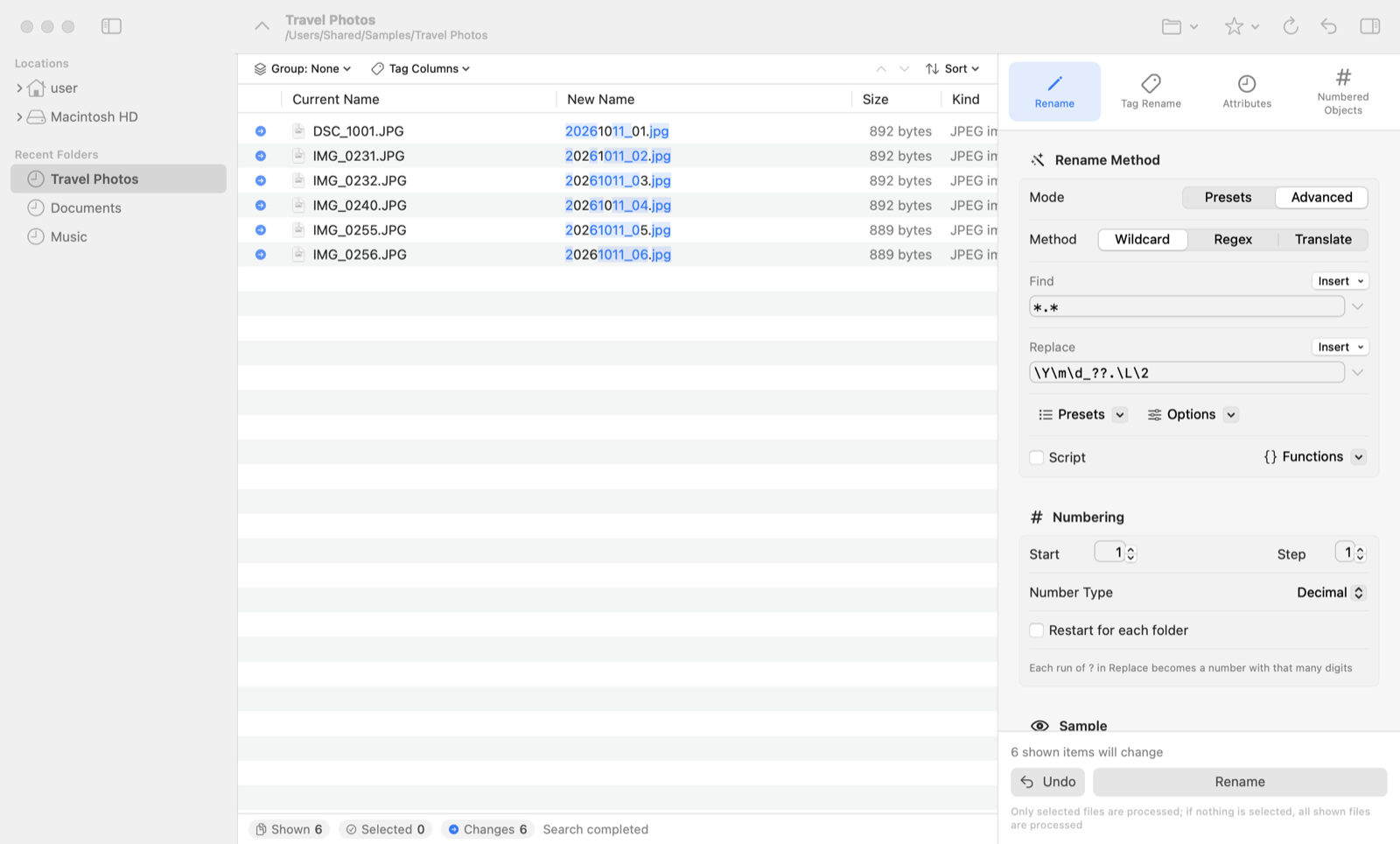
*.*, Replace \Y\m\d_??.\L\2 gives “20260928_01.jpg” and so on (extension in lowercase).Wildcard
* matches any text and ? matches any single character. The matched parts can be used in Replace as \1, \2 … in order.
| Find | Replace | Example |
|---|---|---|
*.* | Trip_??.\2 | IMG_0231.JPG → Trip_01.JPG |
IMG_*.* | photo_\1.\2 | IMG_0231.JPG → photo_0231.JPG |
*_draft.* | \1.\2 | Minutes_draft.docx → Minutes.docx |
Regex (regular expressions)
Lets you specify detailed patterns. Parts enclosed in ( ) become \1, \2 ….
| Find | Replace | Example |
|---|---|---|
(.*)_v(\d+)(\..*) | \1\3 | report_final_v2.xlsx → report_final.xlsx |
^(\d{4})(\d{2})(\d{2}) | \1-\2-\3 | 20260812.jpg → 2026-08-12.jpg |
Translate
Converts each character in Find into the character at the same position in Replace. Ranges can be written like a-z. Example: Find a-z, Replace A-Z turns lowercase letters into uppercase.
Helpers
- Insert: use the “Insert” menus above the Find and Replace fields to enter common symbols and expressions.
- Presets: save the current find/replace settings under a name and recall them later. Use “Organize Presets…” to reorder or delete them.
- Options: case-sensitive search, show matching items only, whether the date uses the modification or creation date, and more.
- Script: use JavaScript (JScript-compatible) functions in Replace. Use “Functions” to insert functions or edit the user script.
Editing names one by one
Select an item and press F2 (or Control-click it and choose “Edit Name”) to type its new name directly. Names you edit by hand take priority over other settings. Choose Edit → Clear All Manual Edits to discard them.
6. Replace Syntax
The following expressions can be used in Replace (and in the Tag Rename format). You can also see this list at any time with Help → Replace Syntax Help (⌘?).
File
\0 | Current name (with extension) |
\1–\9 | Parts matched by Find |
\t | Current file title (without extension) |
\e | Current extension |
\f | Folder name |
\F | Parent folder name |
\P | Full folder path |
\; | File size (with separators) |
\: | File size (without separators) |
Numbers
? ?? ??? | Sequential number (digits = number of ?) |
* | Random digits |
Letter case
\U … \E | Uppercase in between |
\L … \E | Lowercase in between |
\u / \l | Next character only upper / lower |
\Q … \E | Treat text in between literally |
Date and time
\Y | Year (4 digits) |
\y | Year (2 digits) |
\m | Month |
\d | Day |
\H | Hour (24-hour) |
\I | Hour (12-hour) |
\p | AM / PM |
\M | Minute |
\S | Second |
\a / \A | Weekday (short / full) |
\b / \B | Month name (short / full) |
\j | Day of the year |
\# | Drop leading zeros of the next item (e.g. \#\m → 8) |
Dates are the file’s modification date (the creation date can be chosen in Options).
Sorting into folders
/ | Folder separator; folders are created automatically |
.. | The folder one level up |
7. Numbering, Groups and Sorting into Folders
Numbering
A number is inserted where ? appears in Replace; ??? gives 001, 002 …. In the “Numbering” section you can set Start, Step and Number Type (Decimal / Hexadecimal). Turn on “Restart for each folder” to start again from 1 in each subfolder.
Numbers follow the order of the list. Use “Sort” above the list or click the column headers to change the order before running.
Group By
Use the “Group” menu above the list to group items by extension, folder and so on. Numbering restarts for each group, so you can, for example, number each file type from 01.
Sorting into folders
If Replace contains /, the folders are created and the files are moved into them.
| Replace | Result |
|---|---|
\Y-\m/\0 | Sorts files into monthly folders such as “2026-08” |
../\Y-\m-\d/\0 | Creates daily folders one level up and sorts the files into them |
\e/\0 | Sorts files into folders by extension |
Target (narrowing down items)
- Items: whether to process files, folders or both.
- Filter: narrow down items with patterns separated by semicolons, such as
jpg;png;*.txt. - Include subfolders: show and process files in folders inside the current folder. “Depth” sets how many levels to include (0 = unlimited).
- Hide system and hidden files: normally leave this on.
8. Tag Rename
Names files using information (tags) stored in the files. Write tags in the “Format” field in the form <TagName>. You can insert them from the “Tags” menu.
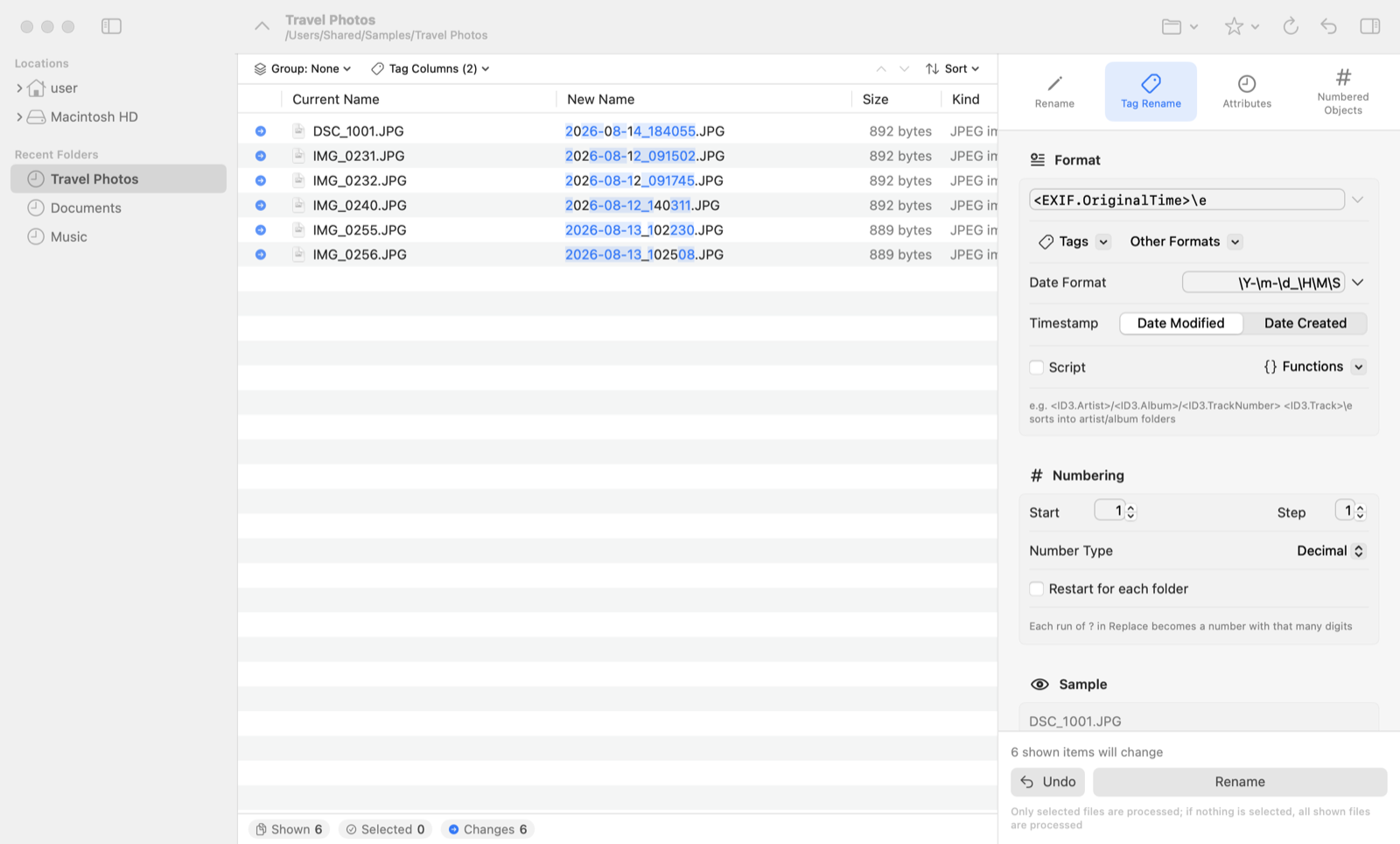
<EXIF.OriginalTime>\e renames photos to the date and time they were taken (e.g. 2026-08-12_091502.JPG).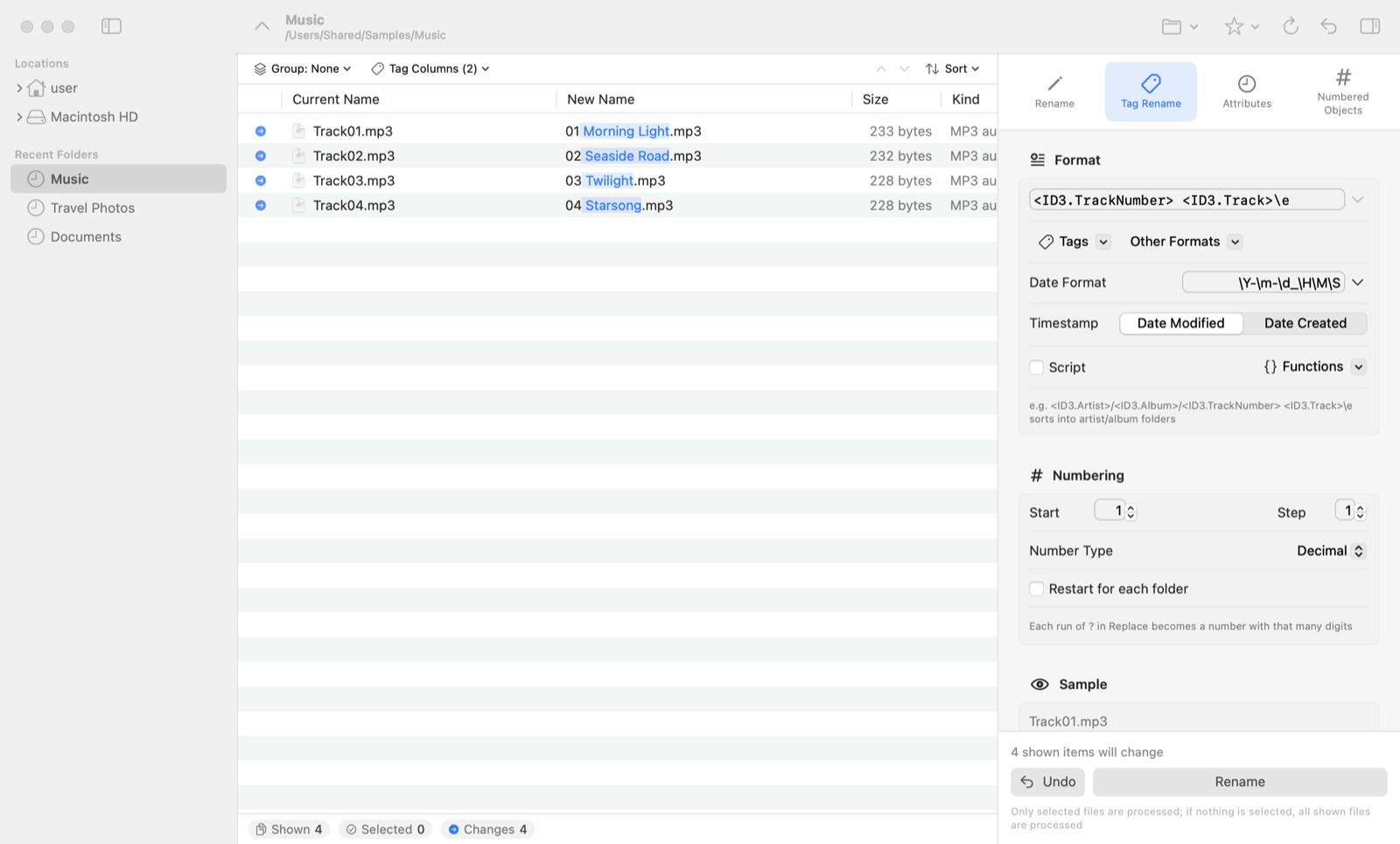
<ID3.TrackNumber> <ID3.Track>\e renames music files to “01 Morning Light.mp3” and so on.Available tags
| Category | Files | Main tags |
|---|---|---|
| Music <ID3> | MP3, AAC/M4A, FLAC, Ogg, WMA, etc. | Title, artist, album, track number, year, genre |
| Photo <EXIF> | JPEG, HEIC, TIFF, RAW, etc. | Date taken, camera model, maker, image size |
| Image <IPTC> | Images with IPTC data | Title, keywords, creator |
| Document <DOC> | Word, Excel, PowerPoint, PDF | Title, author, subject |
| Web page <HTML> | HTML | Page title |
- Date Format: sets how date tags appear in names (e.g.
\Y-\m-\d_\H\M\S). - Tag Columns: use “Tag Columns” above the list to show tag values as columns — useful for checking before renaming.
- Files without tags: files that don’t contain the tags you use are not renamed.
- Sorting into folders: a format such as
<ID3.Artist>/<ID3.Album>/<ID3.TrackNumber> <ID3.Track>\eorganizes files into artist and album folders. - If a tag contains characters that can’t be used in names (such as
/or:), you can choose replacements under “Invalid Characters” in Settings.
9. Attributes (Dates, Lock, etc.)
Changes the dates and attributes of files and folders at once. Run it with the “Apply” button. Attribute changes cannot be undone, so check the items carefully before running.
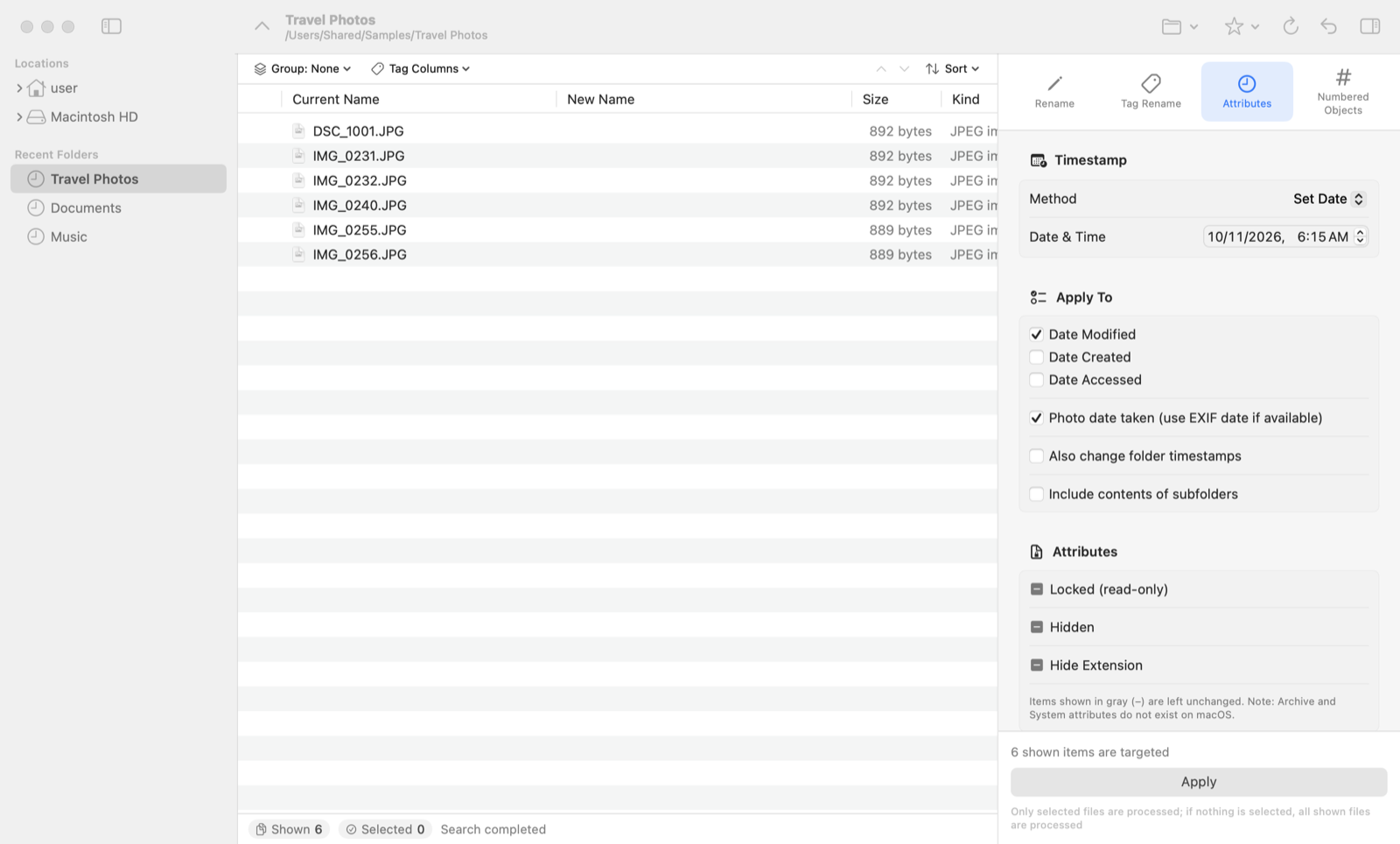
Timestamp methods
| Set Date | Sets all items to the date and time you specify. |
| Shift | Moves the current dates by the amount you specify (e.g. to fix a camera clock that was off). |
| Random | Sets random dates within a range. |
| Match | Makes the other dates match one of them (modification, creation, etc.). |
| Sequential | Sets dates in list order, each one shifted by a set interval. |
Under Apply To, choose which dates to change: Date Modified, Date Created or Date Accessed. If “Photo Date Taken” is on, files with an EXIF date taken use that date.
Attributes
For Locked (read-only), Hidden and Hide Extension, choose on, off, or no change (grey “–”).
10. Numbered Objects
Creates new numbered files or folders in the folder currently shown in the list.
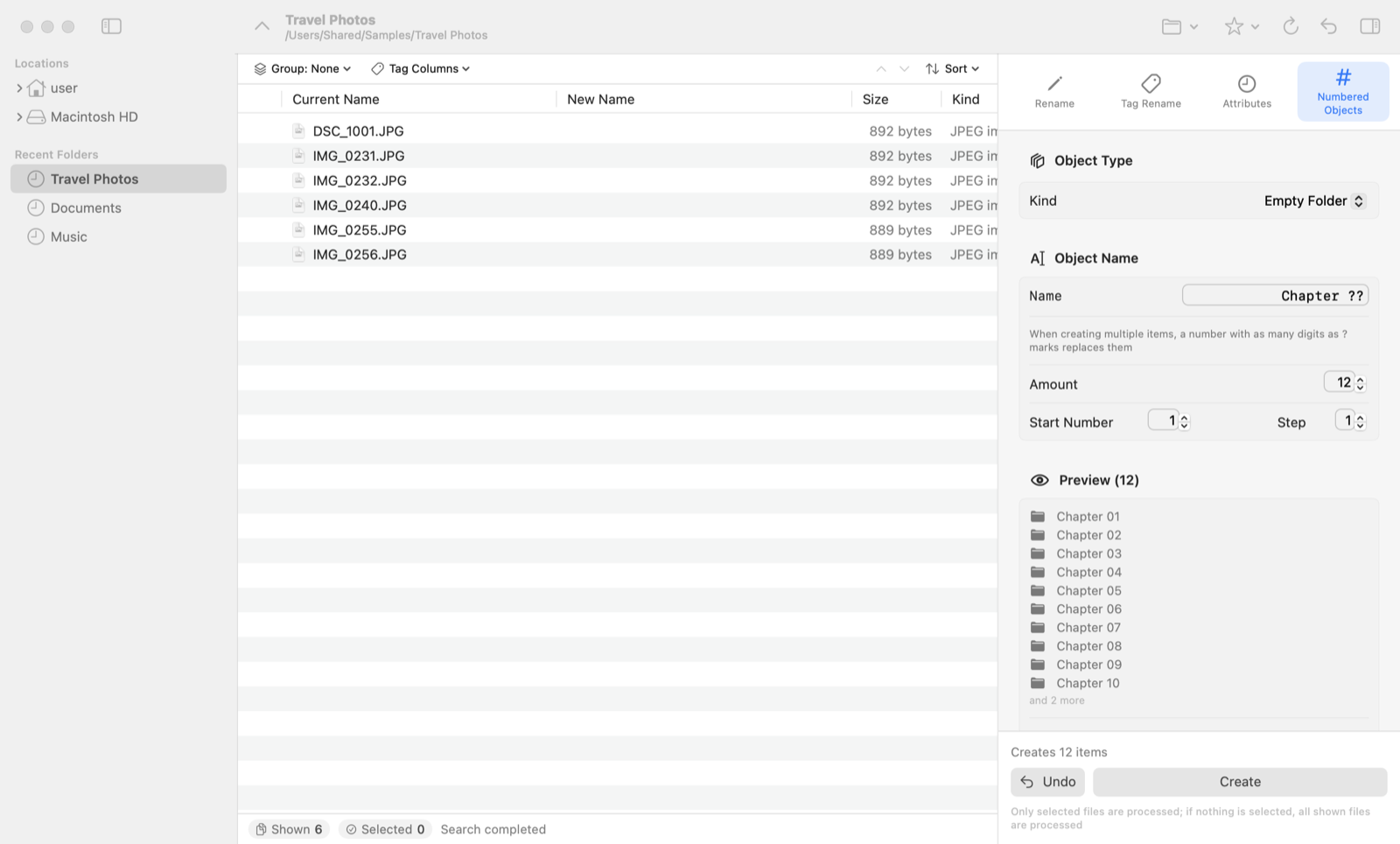
| Empty File | Creates empty files of a given size. |
| File Copy | Duplicates a file you choose (useful for templates). |
| Empty Folder | Creates empty folders. |
| Folder Copy | Duplicates a folder you choose, including its contents. |
A number with as many digits as there are ? is inserted at the position of ? in the name. Set Amount, Start Number and Step, then click “Create”.
11. Actions and Name Conflicts
Action
Rename and Tag Rename can do more than change names:
| Rename | Renames items in place (the usual choice). |
| Move & Rename to Another Folder | Moves items to the destination folder while renaming them. |
| Copy & Rename to Another Folder | Keeps the originals and copies them to the destination with new names. |
| Create Alias & Rename in Another Folder | Creates aliases with the new names in the destination. |
| Create Hard Link & Rename in Another Folder | Creates hard links with the new names in the destination (same disk only). |
| Move to Trash | Moves the items to the Trash. You are asked to confirm first. |
When names collide
If a new name would be the same as another file’s name, a ▲ (warning) appears on that row, so you can notice it before running and adjust the settings.
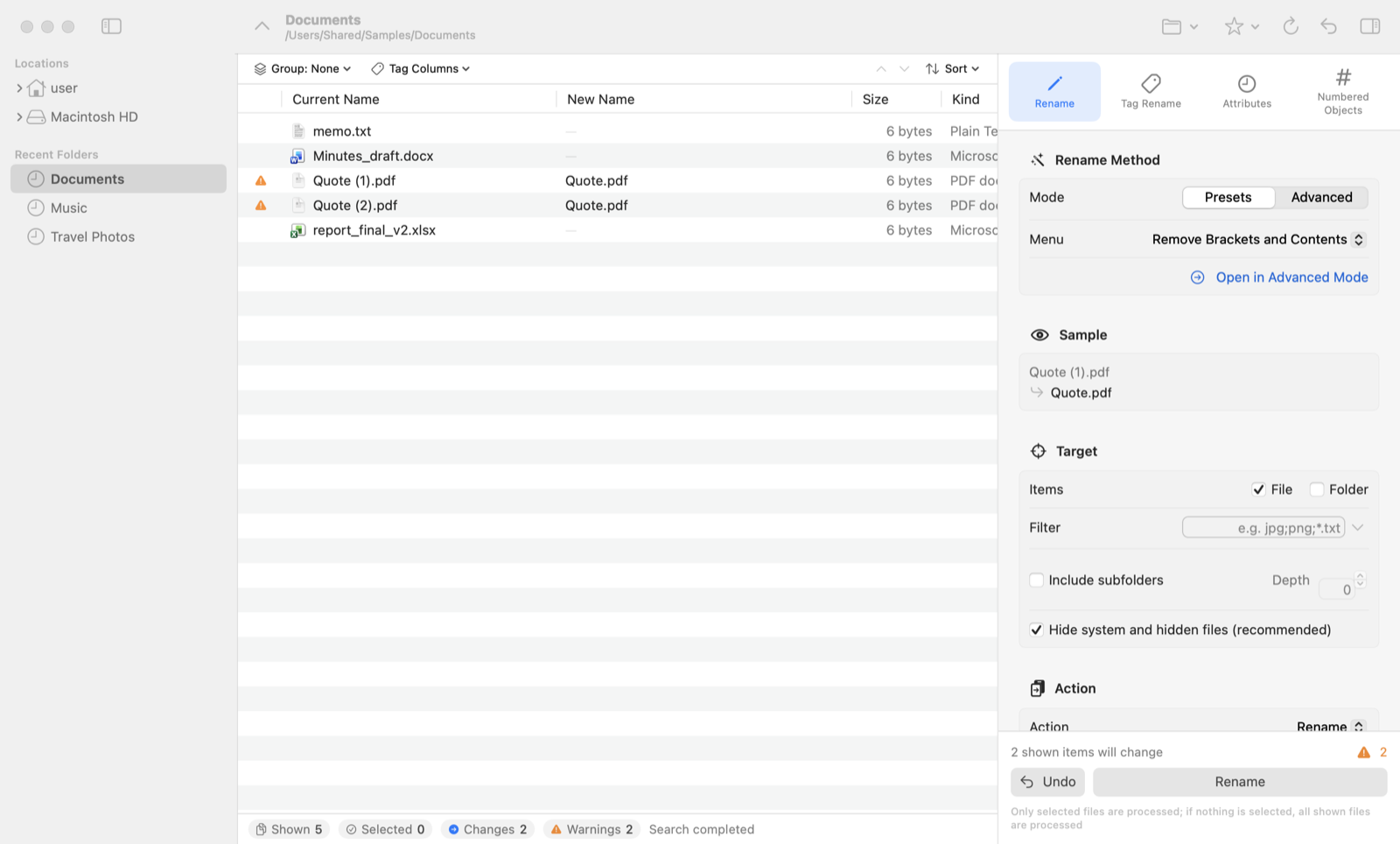
If a conflict occurs while running, you can choose what to do in the following window. (If you turn off “Ask every time” in Settings, a predefined choice is applied automatically.)

| Retry | Tries again (for example, after moving a file in another app). |
| Skip / Skip All | Leaves this file (and all following conflicts) unchanged and continues. |
| Overwrite / Overwrite All | Replaces the existing file. The replaced file is moved to the Trash, so it can be restored with “Undo”. |
| Add a Number | Adds a number, like “Quote (2).pdf”, to avoid the conflict. The number format can be changed in Settings. |
| Abort and restore the state before renaming | Cancels all changes made so far and stops. |
| Abort and keep the current state | Keeps the changes made so far and stops. |
12. Undo
You can undo the last operation with the “Undo” button at the bottom right or with Edit → Undo Rename (⌥⌘Z). A confirmation appears so you can check what will be undone.
- Covered: Rename and Tag Rename (including move, copy, alias, hard link, sorting into folders, Move to Trash and overwriting) and creating Numbered Objects.
- Moved items return to their original place and name; copied or created items are moved to the Trash.
- The record is saved, so you can undo the last operation even after quitting the app.
• Operations before the last one (only the most recent one can be undone)
• Files renamed or moved in the Finder or other apps afterwards, and files deleted by emptying the Trash
13. Settings
Choose RenameKing → Settings… (⌘,).
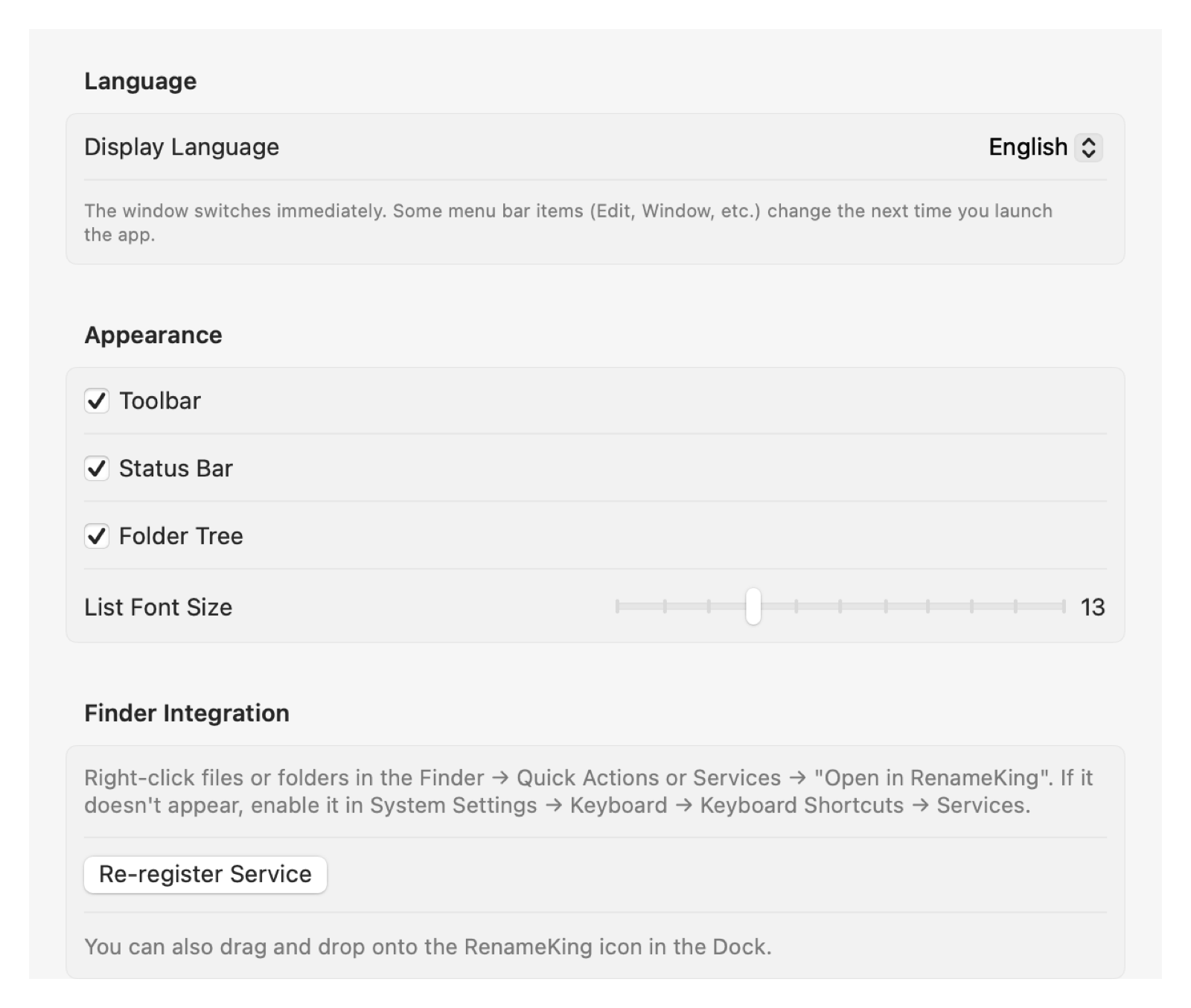
| Item | Description |
|---|---|
| Language | Changes the display language. The window changes immediately; parts of the menu bar change the next time you open the app. |
| Appearance | Show or hide the toolbar, status bar and folder tree; list font size. |
| Finder Integration | Registers the Finder Control-click menu item (service). If it doesn’t appear, click “Re-register Service”, or turn it on in System Settings → Keyboard → Keyboard Shortcuts → Services. |
| When a Name Conflicts | Whether to ask every time or apply a set choice automatically; the number format (e.g. (??)) and position used by “Add a Number”. |
| Tag Rename | Date format for tags; replacements for invalid characters. |
| Script | Edit and reload the user script. |
| Folder access | View, add and remove folders allowed in the App Store version (see next chapter). |
14. Folder Access (App Store Version)
Because of Apple’s security system (the sandbox), the App Store version of RenameKing can only change files in folders you have allowed. The following window appears the first time you open the app.
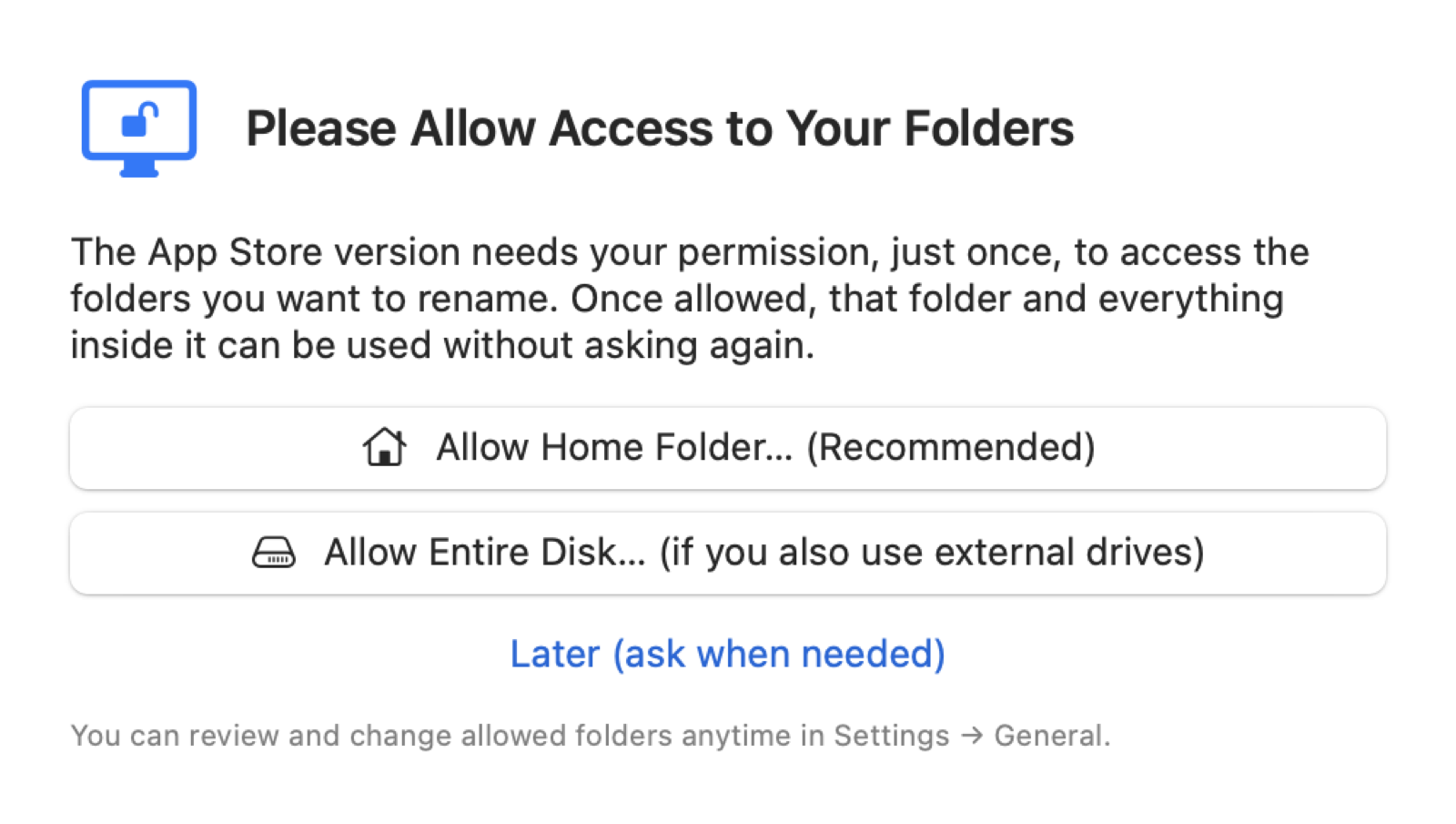
- Click Allow Home Folder… (Recommended), then click “Allow” in the window that appears. Everything in your home folder, including Documents and Desktop, can then be used without further questions.
- If you also use external drives, choose Allow Entire Disk….
- If you choose “Later”, you are asked each time you open or process a folder that hasn’t been allowed yet.
You can view, add or remove allowed folders at any time in Settings → General. This information is stored only on your Mac and is never sent anywhere.
15. Keyboard Shortcuts
| Keys | Command |
|---|---|
| ⌘O | Choose Folder… |
| ⇧⌘O | Choose Files… |
| ⇧⌘G | Go to Folder… (type a path) |
| ⌘1–⌘4 | Switch to Rename / Tag Rename / Attributes / Numbered Objects |
| ⌘↩ | Run |
| ⌥⌘Z | Undo Rename |
| F2 | Edit the new name of the selected item |
| ⌘⌫ | Remove selected items from the list (files are not deleted) |
| ⇧⌘A | Select All in List |
| ⌘I | Invert Selection |
| ⌘R | Refresh the list |
| F5 | Refresh Folder Tree |
| ⌥⌘I | Show / hide the settings panel |
| ⌘+ / ⌘- | Larger / smaller list text |
| ⌘D | Add the current folder to Favorites |
| ⌘? | Replace Syntax Help |
| ⌘, | Settings |
If F2 or F5 doesn’t work on a MacBook, press it together with the fn key.
16. FAQ
“New Name” is empty or doesn’t change
Your Find pattern may not match the names. In Presets, check that required fields aren’t empty; in Advanced mode, check the Find pattern. In Tag Rename, files without the tags you use are not renamed (you can check values with “Tag Columns”).
Numbers are not in the order I expected
Numbers follow the order of the list. Sort the list with “Sort” or the column headers before running. When grouping is on, numbering restarts for each group.
A ▲ (warning) appears
The new name collides with another file or contains characters that can’t be used in names. Adjust the settings, or use “Add a Number” to avoid conflicts.
“Access is not allowed” appears (App Store version)
Access to that folder hasn’t been granted. Allow it in the window that appears, or add the folder in Settings → General.
“Open in RenameKing” doesn’t appear in the Finder
Click Settings → General → Re-register Service, then turn on “Open in RenameKing” in System Settings → Keyboard → Keyboard Shortcuts → Services.
The app stopped responding after using a script
The user script may contain code that never finishes (such as an infinite loop). Force quit the app, then fix the script with Help → Open User Script.
I want to reset all settings
Quit the app, then move the contents of the folder opened by Help → Open Settings Folder to the Trash. The default settings are restored the next time you open the app.
17. Support
Answers to frequently asked questions are available on the support page.
Support page: https://malcon.jp/en/apps/renameking/support/
Mac, macOS, Finder and App Store are trademarks of Apple Inc.