
ZipICE
1. Introduction
ZipICE is a Mac app for compressing and extracting files. Simply drop files on it: archives are extracted, and everything else is compressed.
What you can do
- Compress and extract with a single drop: drop onto the window or the Dock icon. You can also double-click in Finder or use the Finder shortcut menu.
- Many formats: extract almost every common format, including zip, 7z, rar, lzh and tar.gz.
- No garbled names when exchanging files with Windows: names in zip files made on Windows come out correctly, and the zip files you make display correctly on Windows.
- Password-protected archives: create password-protected zip and 7z files, and extract password-protected zip, 7z, rar and arj files.
- Check the contents before extracting: see a list of what’s inside and extract only what you need (Preview).
System requirements
macOS 15 or later, on Macs with Apple silicon or Intel processors. The app can be displayed in Japanese, English, Chinese (Simplified and Traditional), Korean, German, French, Spanish, Italian and Portuguese (Brazil).
2. The main window
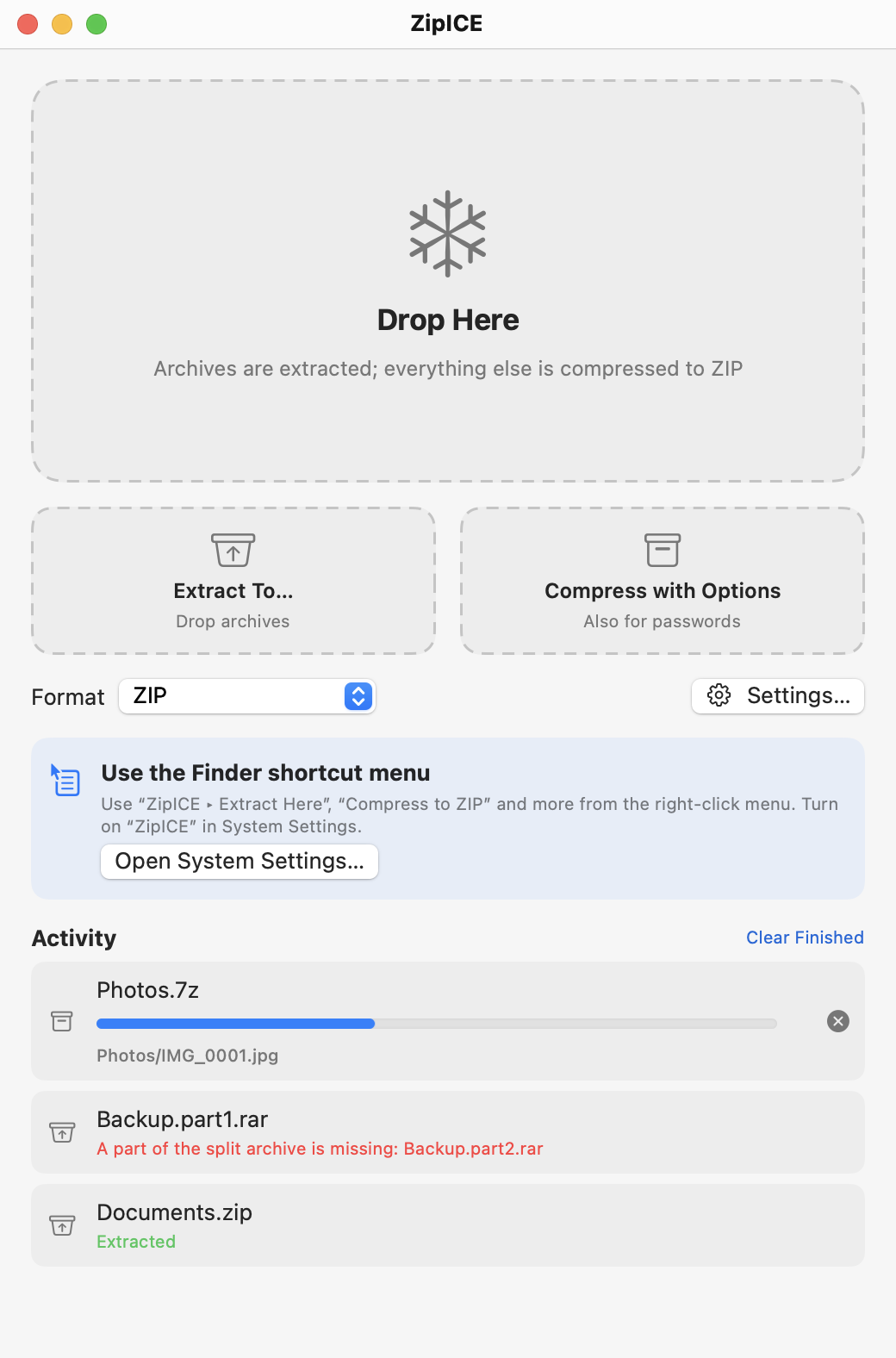
| Area | Description |
|---|---|
| Drop Here | Drop files or folders here. Archives are extracted; everything else is compressed in the format selected under “Format”. |
| Extract To… | Drop archives here to choose a destination folder before extracting. Click to choose archives. |
| Compress with Options | Drop items here (or click to choose them) to set the format, password and more before compressing. |
| Format | The format used when compressing by dropping on “Drop Here”. |
| Settings… | Opens the settings (⌘,). |
| Activity | Progress and results of extracting and compressing. Click the magnifying glass to show the result in Finder, or × to stop. |
3. Extracting
How to extract
- Drop an archive on “Drop Here” in the main window or on the ZipICE icon in the Dock.
- Double-click the archive in Finder (if ZipICE is the default app for that type of archive — set it with “Get Info” → “Open with” in Finder).
- Right-click the archive in Finder and choose “ZipICE” → “Extract Here” or another command (see the Finder shortcut menu).
- Choose File → Choose Archives to Extract… (⌘O).
By default, the list of contents (Preview) appears before extracting. Click “Extract All” to start.
Destination and folders
Choose where to extract in Settings → Extract (same as the original, Desktop, Downloads, a specific folder, or ask each time). The default is the same folder as the original.
When “Create folder” is set to “Only when needed” (the default), an archive that contains a single folder is extracted as that folder. If it contains several items, a folder with the archive’s name is created and the items are extracted into it. You never end up with a folder nested inside another folder of the same name.
If an item with the same name already exists, nothing is overwritten: the new item gets a name such as “Name (2)”.
Password-protected archives
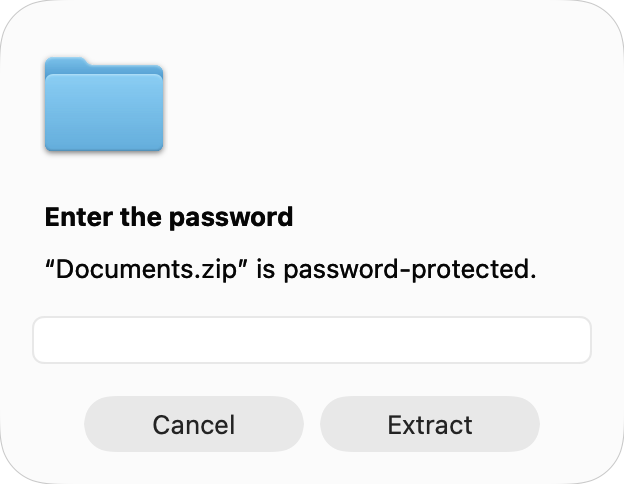
When you extract a password-protected archive, ZipICE asks for the password. If it is wrong, you are asked again. Passwords of zip files made on Japanese Windows also work as typed.
Split archives
For split archives such as “.part1.rar”, “.7z.001” or “.001”, extract the first file and ZipICE reads the remaining parts automatically. Keep all the parts in the same folder.
4. Preview (check before extracting)
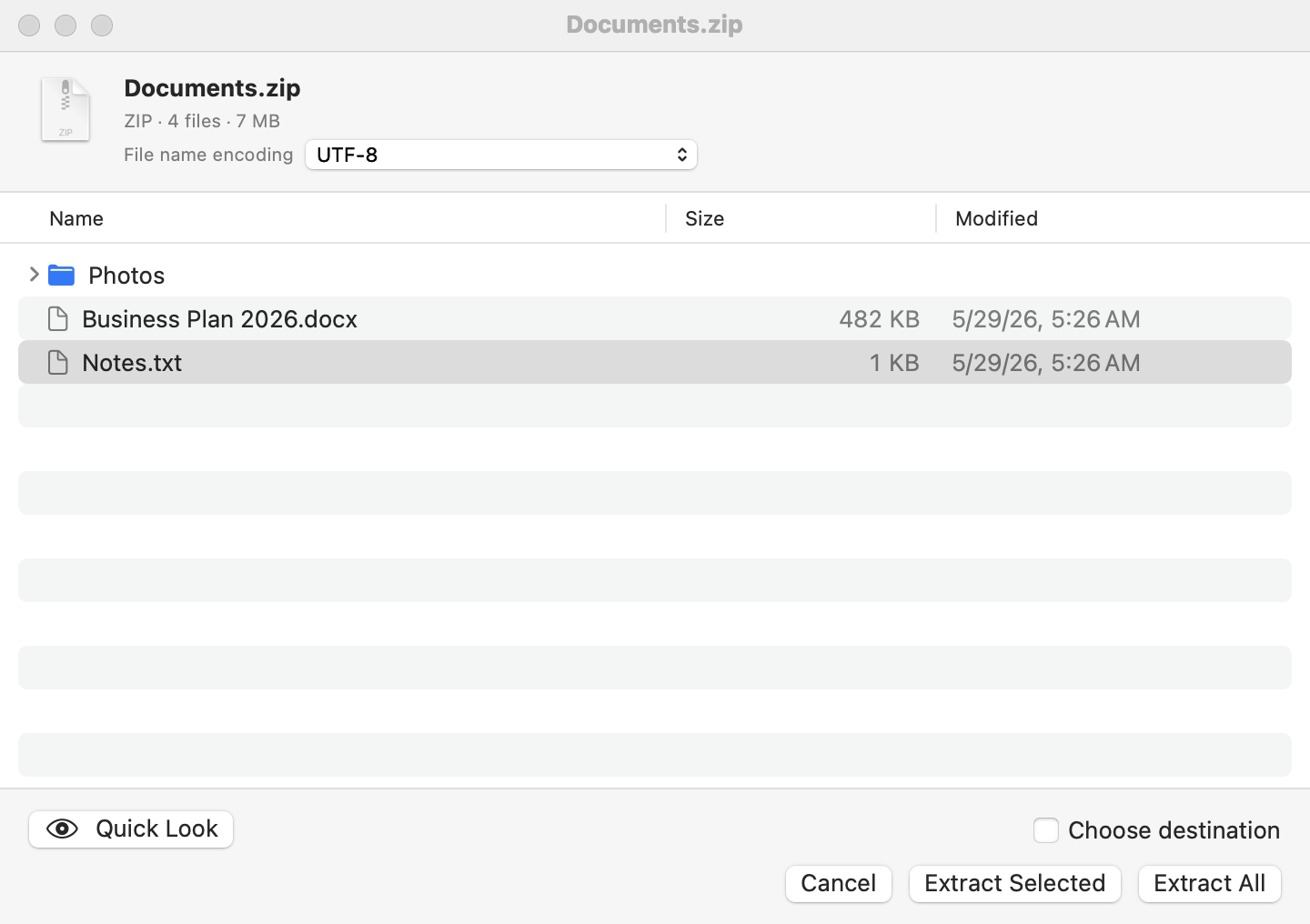
When you open an archive, ZipICE shows its contents before extracting. Click ▸ next to a folder to open it. A lock marks password-protected items.
| Control | Description |
|---|---|
| Extract All | Extracts everything in the archive (↩). |
| Extract Selected | Extracts only the files and folders you selected. Hold ⌘ or ⇧ while clicking to select several. |
| Quick Look | Shows the contents of the selected file. You can also press Space or double-click. |
| Choose destination | When on, you choose the destination folder when extracting. |
| File name encoding | If names in a zip, lzh or similar archive look garbled, try other encodings to find the one that displays correctly. The archive is extracted with the encoding you choose. |
To extract immediately without the preview, turn off “Preview contents before extracting” in Settings → Extract. Even then, you can open the list with File → View Archive Contents… (⌘I).
5. Compressing
How to compress
- Drop files or folders on “Drop Here” in the main window or on the ZipICE icon in the Dock. They are compressed in the format selected under “Format” in the main window.
- Right-click in Finder and choose “ZipICE” → “Compress to ZIP” or another command.
- Choose File → Choose Files to Compress… (⌘N).
The archive is named after the item, or after the first item if there are several. Choose where to save it in Settings → Compress (the default is the same folder as the original).
Choosing the format and password
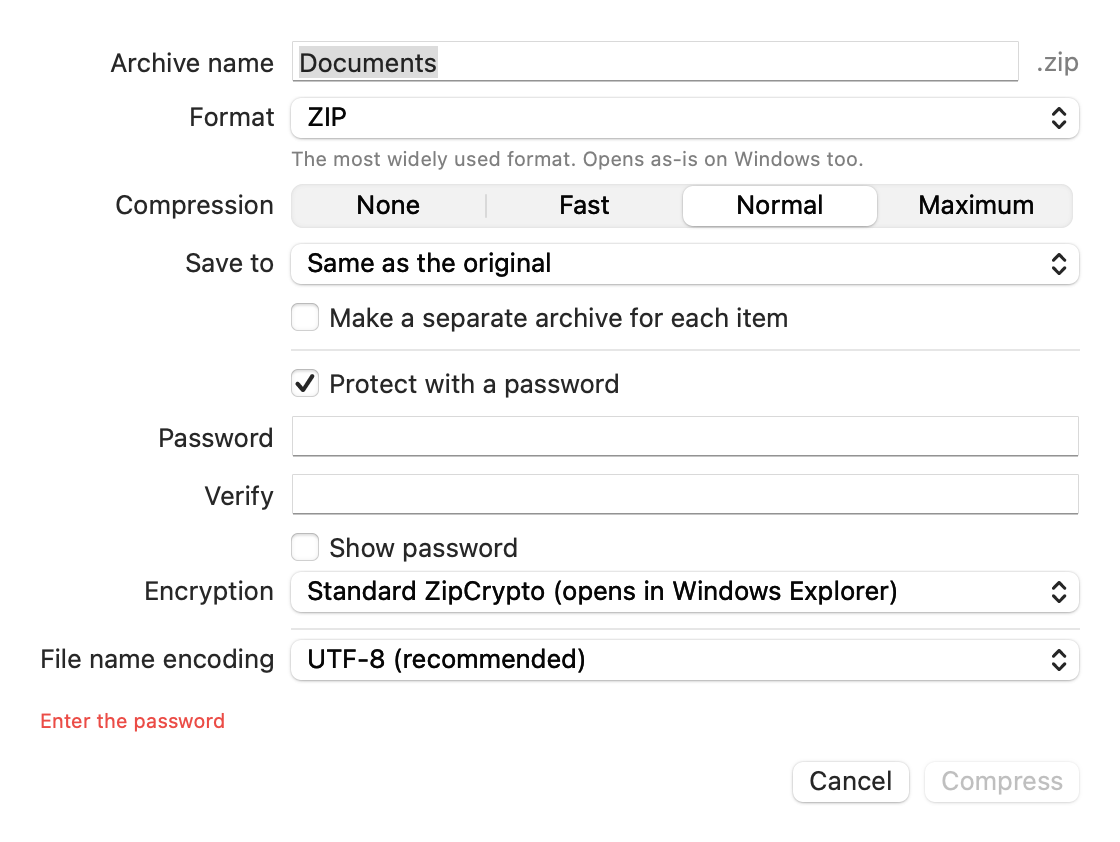
When you drop items on “Compress with Options”, you can set the following.
| Option | Description |
|---|---|
| Archive name | The name of the archive to create. |
| Format | ZIP, 7Z, TAR.GZ, TAR.BZ2, TAR.XZ, TAR.ZST or TAR (plus GZ, BZ2 and XZ for a single file). |
| Compression | None, Fast, Normal or Maximum. |
| Make a separate archive for each item | When several items are selected, each is compressed into its own archive. |
| Protect with a password | Available for ZIP and 7Z. Enter the password twice to confirm it. |
| Encryption (ZIP) | “Standard ZipCrypto” opens in Windows Explorer but is less secure. “AES-256” is secure but needs a compatible app to open. |
| Also hide file names (7Z) | File names inside the archive can’t be seen without the password. |
| File name encoding (ZIP) | Usually leave this at “UTF-8 (recommended)” (see Exchanging files with Windows). |
6. The Finder shortcut menu
Right-click files in Finder to extract or compress them directly from the “ZipICE” menu.
| Command | Description |
|---|---|
| Extract Here | Extracts next to the archive (shown for archives). |
| Extract (Default Location) | Extracts to the destination set in Settings → Extract. |
| Extract To… | Lets you choose the destination folder. |
| Compress to ZIP / Compress to 7Z | Compresses in that format. |
| Compress with Options… | Lets you set the format, password and more. |
Turning on the shortcut menu
- Open ZipICE once.
- Click “Open System Settings…” in the main window (or the same button in Settings → General).
- In System Settings, under “Login Items & Extensions”, turn on the ZipICE Finder extension.
Finder places the menu where it chooses (near “Quick Actions”).
7. Supported formats
| Format | Extract | Create | Password |
|---|---|---|---|
| zip | ✓ | ✓ | ✓ (ZipCrypto, AES-256) |
| 7z | ✓ | ✓ | ✓ (AES-256, can hide names) |
| rar (RAR4, RAR5) | ✓ | – | Extract only |
| lzh, lha | ✓ | – | – |
| arj | ✓ | – | Extract only (standard) |
| tar, tar.gz, tar.bz2, tar.xz, tar.zst | ✓ | ✓ | – |
| gz, bz2, xz (single file) | ✓ | ✓ | – |
| cab, iso, cpio, xar, rpm, deb, lzma, zst, Z | ✓ | – | – |
| wim (Windows images) | ✓ | – | – |
| Split archives (.001, .part1.rar, etc.) | ✓ | – | – |
The following can’t be extracted: ESD (LZMS-compressed) wim files, split zip files (.z01), zip files using the PPMd method, and arj files with GOST passwords.
8. Exchanging files with Windows
Mac and Windows handle characters in file names differently. ZipICE takes care of the following automatically.
When extracting
- Names in zip files made on Windows in local encodings (such as Japanese Shift_JIS) and in zip files made on a Mac are detected and extracted correctly. The same goes for lzh, arj, tar and others.
- Names containing characters that Windows treats as including a “\” byte are extracted correctly.
- “__MACOSX” and “.DS_Store” items in archives made on a Mac are skipped (you can change this in Settings).
When compressing
- Accents: the Mac may store accented letters as two characters (for example “e” + “´”), which then appear split on Windows. ZipICE always recombines them before saving.
- Characters Windows can’t use:
\ : * ? " < > |are replaced with similar full-width characters (you can change this in Settings). - Mac-only hidden files: “.DS_Store”, “__MACOSX” and similar files are left out (you can change this in Settings).
- File name encoding: the default, UTF-8, displays correctly on Windows 10 or later, Mac and smartphones. Choose “Shift_JIS” in Settings → File Names only if recipients use older Japanese Windows or old unzip tools.
9. Settings
Choose ZipICE → Settings… (⌘,).
Extract
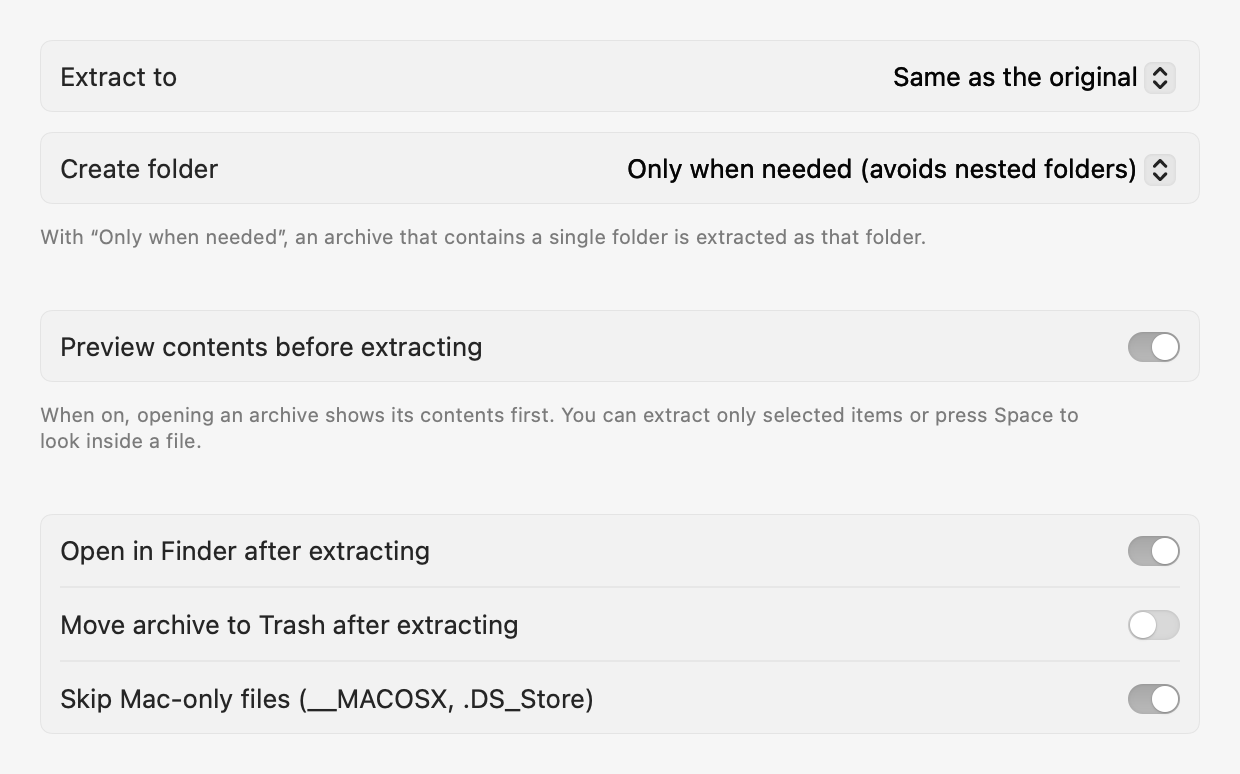
| Setting | Description |
|---|---|
| Extract to | Same as the original, Desktop, Downloads, a specific folder, or ask each time. |
| Create folder | Only when needed (avoids nested folders), Always, or Never. |
| Preview contents before extracting | Shows the preview before extracting (on by default). |
| Open in Finder after extracting | Opens the extracted folder in Finder. |
| Move archive to Trash after extracting | Moves the archive to the Trash when extracting is finished. |
| Skip Mac-only files | Doesn’t extract “__MACOSX” and “.DS_Store”. |
Compress
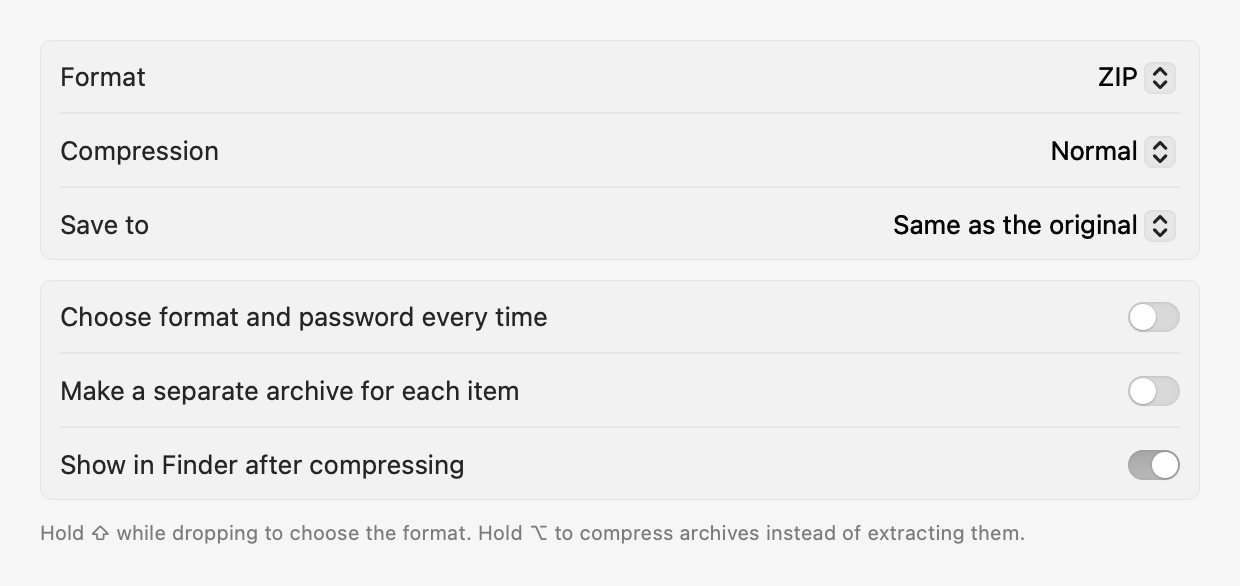
| Setting | Description |
|---|---|
| Format, Compression | The format and compression level used when compressing by dropping. |
| Save to | Where archives are saved. |
| Choose format and password every time | Always shows the compression options. |
| Make a separate archive for each item | Compresses each item separately instead of together. |
| Show in Finder after compressing | Shows the new archive in Finder. |
File Names
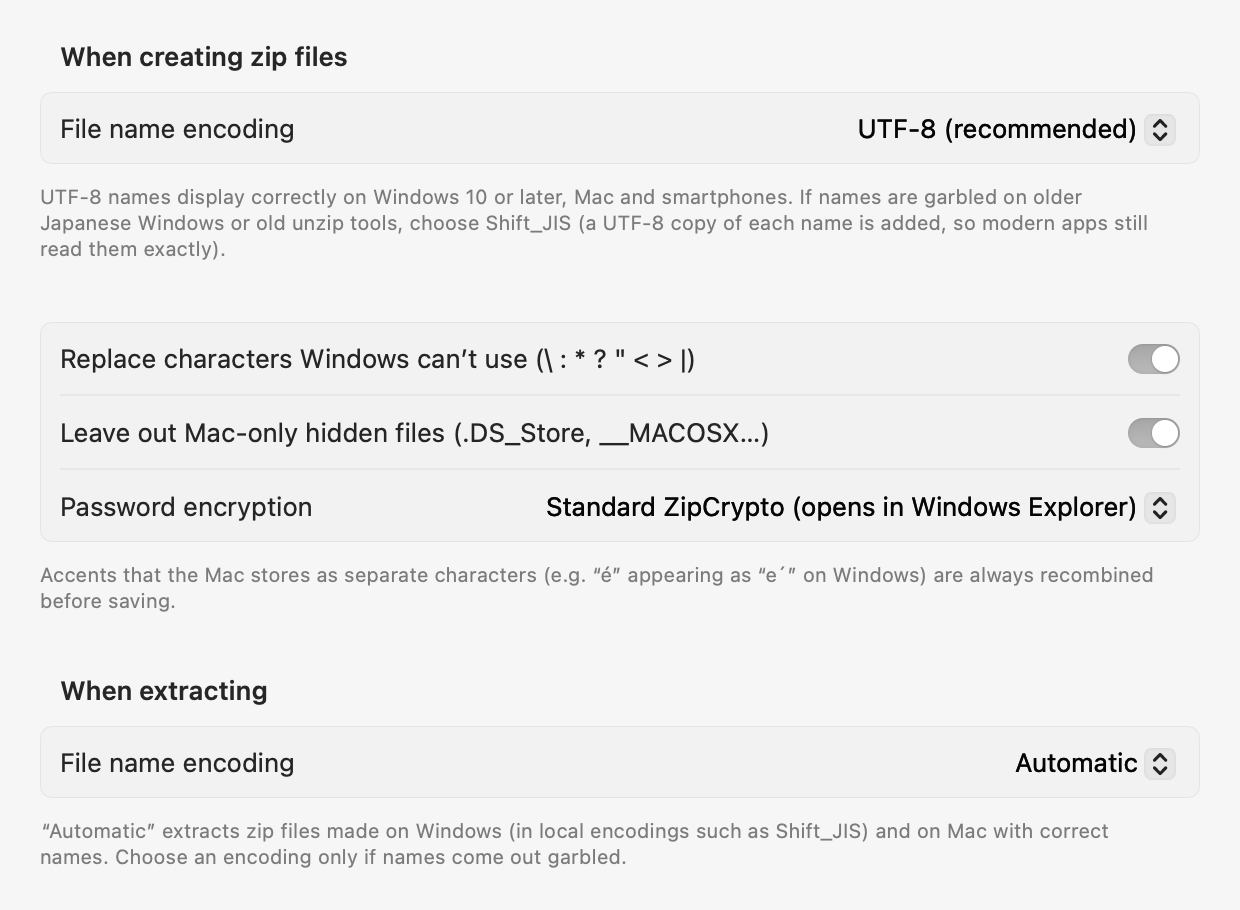
| Setting | Description |
|---|---|
| File name encoding (creating zip) | UTF-8 (recommended) or Shift_JIS (for older Japanese Windows; a UTF-8 copy of each name is added). |
| Replace characters Windows can’t use | Replaces \ : * ? " < > | with full-width characters. |
| Leave out Mac-only hidden files | Doesn’t add “.DS_Store”, “__MACOSX” and similar files. |
| Password encryption | The encryption used for zip passwords (ZipCrypto or AES-256). |
| File name encoding (extracting) | Usually “Automatic”. Choose an encoding only if names come out garbled. |
General
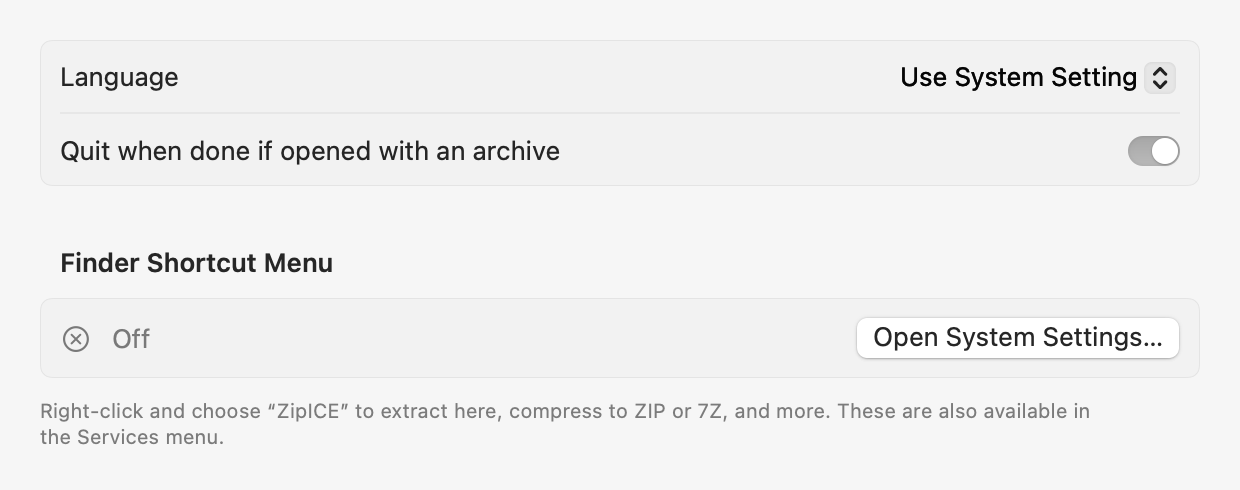
| Setting | Description |
|---|---|
| Language | The language of the app. By default it follows the system setting. |
| Quit when done if opened with an archive | When ZipICE was started by double-clicking or dropping, it quits after the work is done. |
| Finder Shortcut Menu | Shows whether the Finder extension is on, with a button to open System Settings. |
| Folders with Access | Folders you have allowed in the App Store version (see Folder access). |
10. Folder access (App Store version)
For your security, the App Store version of ZipICE can save files only in folders you allow. The first time it extracts or compresses to a new location, ZipICE asks you to allow a folder.
- The dialog opens with your home folder (the house icon) selected.
- Click “Allow” as it is, and you won’t be asked again for most locations inside your home folder.
- Locations outside your home folder, such as external disks, are allowed once per location.
You can check and remove allowed folders in Settings → General.
11. Keyboard shortcuts
| Keys | Action |
|---|---|
| ⌘N | Choose files to compress |
| ⌘O | Choose archives to extract |
| ⌘I | View archive contents |
| ⌘, | Settings |
| ⌘1 | Show the main window |
| ⌘W | Close the window |
| ⌘Q | Quit ZipICE |
| Space | In the preview, Quick Look the selected file |
| ↩ / esc | In the preview, Extract All / Cancel |
| ⇧ + drop | Compress with options |
| ⌥ + drop | Compress archives instead of extracting them |
12. Frequently asked questions
Extracted file names are garbled
Switch the file name encoding in the preview until the names look right, then extract. If you often handle archives in the same encoding, you can also set it under “When extracting” in Settings → File Names.
Names in my zip file are garbled on Windows
This normally doesn’t happen on Windows 10 or later. For recipients using older Japanese Windows or old unzip tools, choose “Shift_JIS” in Settings → File Names before compressing.
A password-protected zip won’t open on Windows
Zip files encrypted with AES-256 may not open with the built-in Windows features. If the recipient uses Windows Explorer, choose “Standard ZipCrypto”.
I’m asked to allow folder access again and again
When asked, click “Allow” with your home folder (the house icon) selected. You won’t be asked again for most locations inside it (see Folder access).
“ZipICE” doesn’t appear when I right-click
The Finder extension is off. Click “Open System Settings…” in Settings → General and turn on ZipICE (see the Finder shortcut menu).
Can I create rar or lzh archives?
rar, lzh and some other formats can only be extracted. You can create zip, 7z, tar formats, gz, bz2 and xz.
“Unsupported format” appears
The format or compression method of the archive isn’t supported (see Supported formats). This message may also appear if the archive is damaged.
13. Support
Frequently asked questions and answers are available on the support page.
Support page: https://malcon.jp/en/apps/zipice/support/
Open source software
ZipICE uses the following open source software: libarchive (BSD license), XZ Utils / liblzma (0BSD), Zstandard (BSD license) and UnRAR (unRAR license; used only to extract RAR archives). The full license texts are included in the app (ZipICE.app/Contents/Resources/Licenses).
Mac, macOS, Finder, Quick Look and App Store are trademarks of Apple Inc. Windows is a trademark of Microsoft Corporation. RAR is a trademark of Alexander Roshal.