
ZipICE
Compress or extract with a right-click in Finder.
No more garbled file names between Mac and Windows.
Available in 10 languages
ZipICE▸What You Can Do
Right-click in Finder
Right-click a file and choose ZipICE. Compress and extract without ever opening the app.
No garbled names
Zip files made on Windows, zip files you send to Windows — the file names stay intact. Split accent marks are fixed automatically too.
Tons of formats
zip, 7z, rar, lzh and tar, of course — plus arj, cab, iso, wim and other formats you rarely see.
Preview before extracting
Check the contents first, pull out only the files you need, and peek inside with the Space bar.
Password protection
For zip, choose the classic method that opens in Windows Explorer or stronger AES-256. With 7z you can even hide file names.
Just drop it
Archives get extracted, everything else gets compressed. Drop onto the window or the Dock icon — ZipICE figures out the rest.
Right-click in Finder, and you’re done
Right-click a file and choose ZipICE. No need to open the app — compressing and extracting happen right where you are in Finder.
- “Extract Here” for archives, “Compress to ZIP” or “Compress to 7Z” for files and folders
- Choose where to extract, or set the format and password, right from the menu
- Select several files and pack them into one archive
- Also available from Services and by dropping onto the Dock icon
Just once, turn on ZipICE under “Login Items & Extensions” in System Settings (ZipICE shows a button that takes you there).
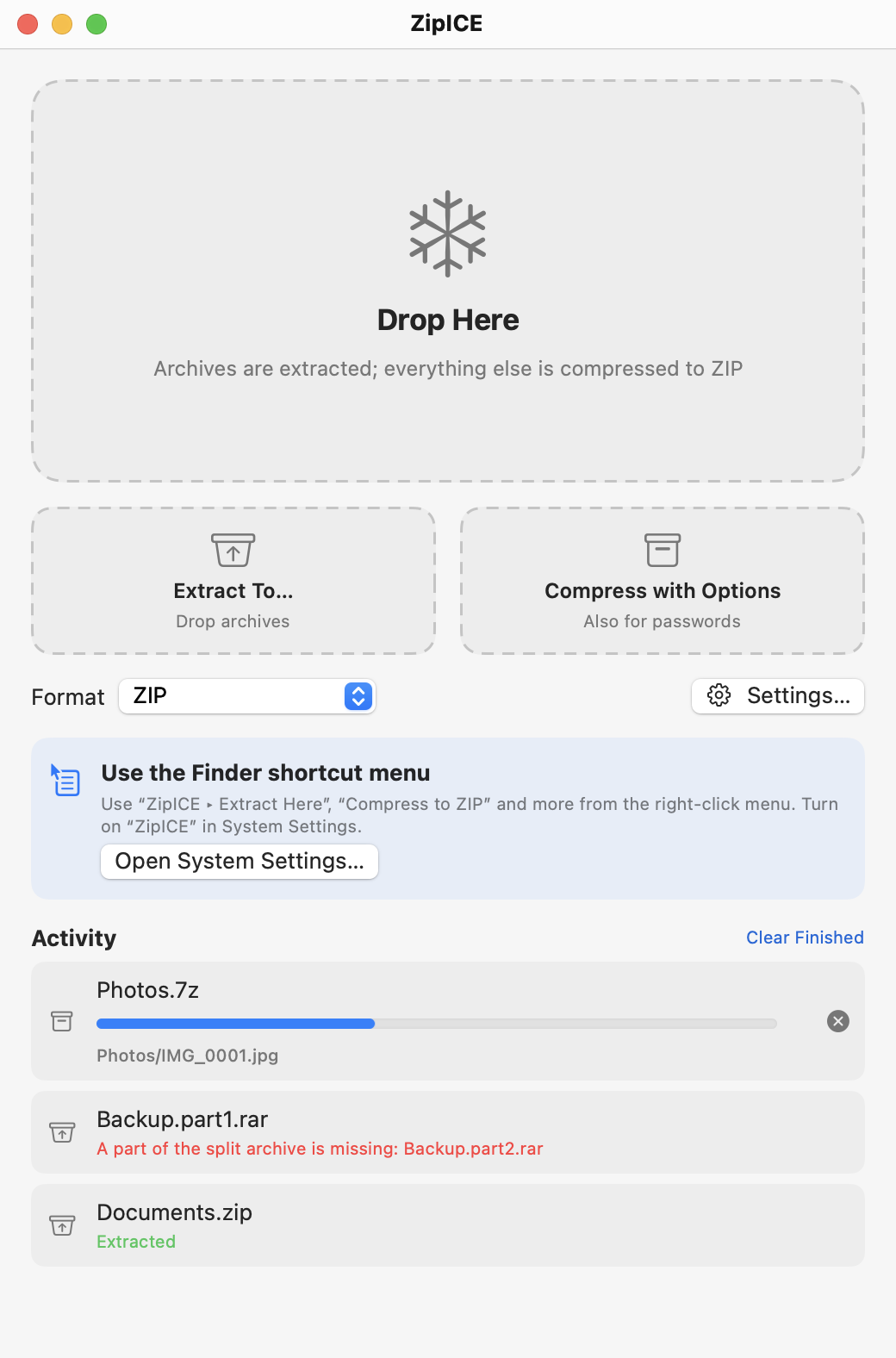
No more garbled names between Mac and Windows
You zip something on your Mac, a colleague opens it on Windows, and the file names turn into gibberish. ZipICE prevents that — both when creating archives and when opening them.
- Saves names in UTF-8, which works on Windows 10 or later, Mac and smartphones (Shift_JIS available for older Japanese Windows)
- Accented characters stored in the Mac’s split form are joined before saving, so they display correctly on Windows
- Characters Windows can’t use (\ : * ? " < > |) are replaced automatically
- Mac-only hidden files (.DS_Store, __MACOSX) are left out
- Name encodings of received zip files are detected automatically
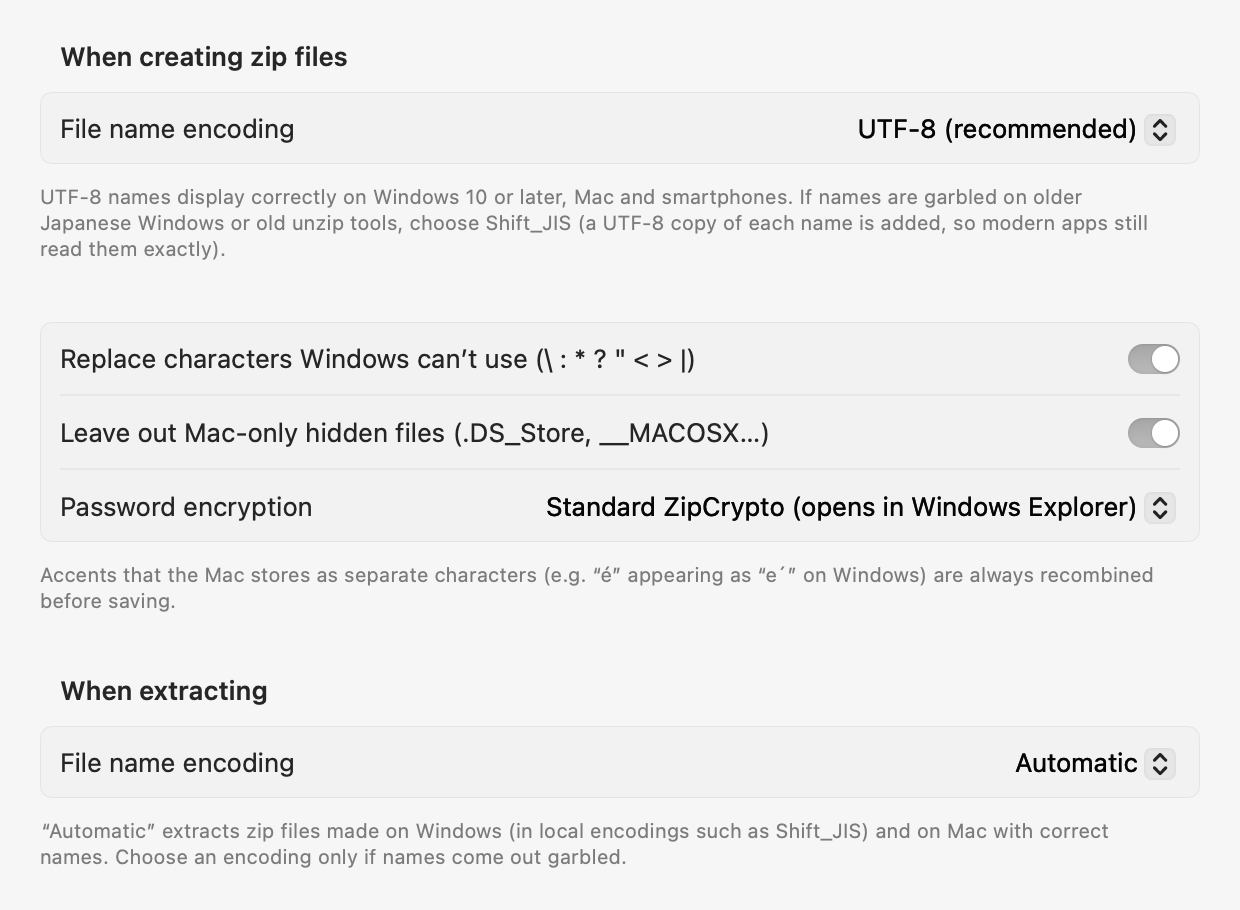
Take a peek before you extract
When you open an archive, ZipICE lists its contents before extracting (you can turn this off in Settings).
- Extract only the files you choose
- Press Space for Quick Look to see images and documents right away
- If names look garbled, switch the encoding on the spot
- A lock icon marks password-protected files
- File → View Archive Contents… (⌘I) works anytime, whatever your settings
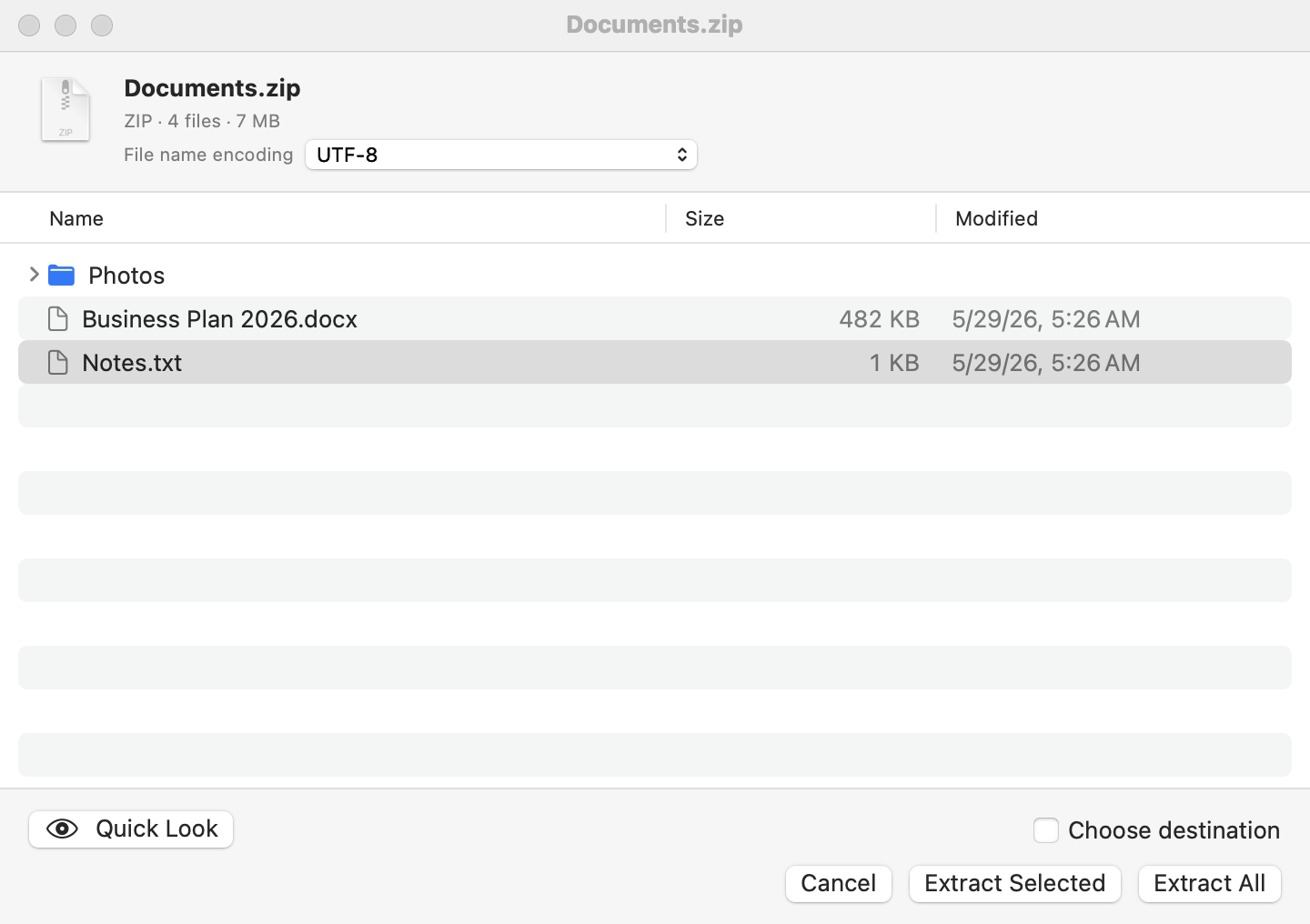
Compress the right way for whoever gets it
Hold ⇧ while dropping, or drop onto “Compress with Options”, to choose the format, compression level and password.
- Formats: ZIP, 7Z, TAR.GZ, TAR.BZ2, TAR.XZ, TAR.ZST and more
- Zip passwords: classic ZipCrypto that opens in Windows Explorer, or stronger AES-256
- 7z with AES-256 can hide the file names too
- Turn several items into separate archives in one go
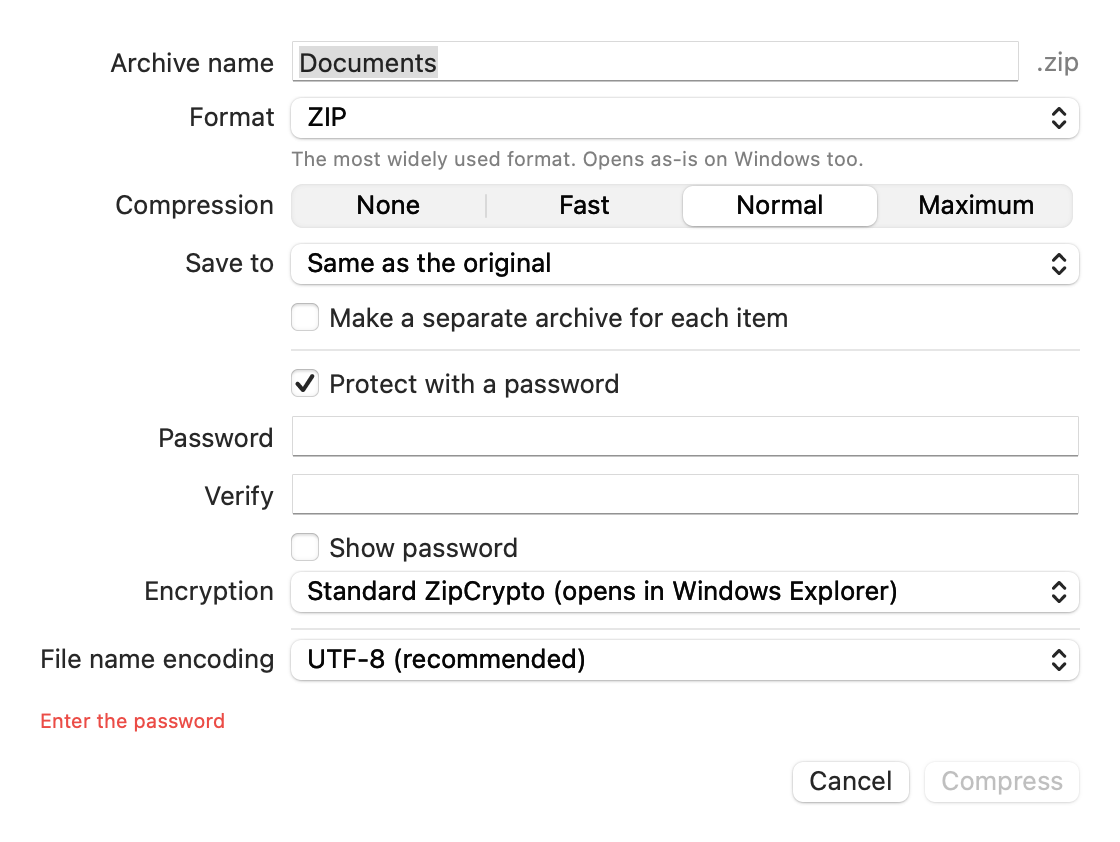
Supported Formats
From everyday formats to old favorites.
| Format | Extract | Create | Password |
|---|---|---|---|
| ZIP | ✓ | ✓ | ZipCrypto / AES-256 |
| 7z | ✓ | ✓ | AES-256can hide file names |
| RARRAR4 / RAR5 | ✓ | — | Extract only |
| LZH / LHA | ✓ | — | — |
| ARJ | ✓ | — | Extract only |
| TARtar.gz / tar.bz2 / tar.xz / tar.zst | ✓ | ✓ | — |
| GZ / BZ2 / XZsingle file | ✓ | ✓ | — |
| CAB / ISO / CPIO / XARRPM / DEB / LZMA / ZST / Z | ✓ | — | — |
| WIMWindows images | ✓ | — | — |
| Split archives.001 / .part1.rar / .7z.001 | ✓ | — | — |
For split archives, just extract the first file and the rest are read automatically. Not supported: ESD-format wim (LZMS compression), split zip (.z01), zip with PPMd compression, and arj with GOST encryption.
And a few more nice touches
- Archives that contain a single folder are extracted without creating a nested folder
- Existing files are never overwritten — new ones are named “Name (2)”
- Extract and save to the original location, Desktop, Downloads, or ask every time
- Hold ⌥ while dropping to compress an archive instead of extracting it
- When opened by double-clicking an archive, ZipICE quits once it’s done
- Passwords for zip files made on Japanese Windows work as typed
- Move the archive to the Trash or open the folder in Finder after extracting — one setting each
- Works with drops on the Dock icon and Finder’s Services menu
System Requirements
| Mac | macOS 15 or later (Apple silicon & Intel) |
|---|---|
| Languages | 日本語, English, 简体中文, 繁體中文, 한국어, Deutsch, Français, Español, Italiano, Português (Brasil) |
| Latest version | Mac 1.0 (Release Notes) |
📖 User Manual
From the basics to every setting, with screenshots.
💬 Support
FAQ and tips.
🔒 Privacy
We collect no data at all.
Mac, macOS, Finder and App Store are trademarks of Apple Inc. Windows is a trademark of Microsoft Corporation. RAR is a trademark of Alexander Roshal.